Device guide · PS5
PlayStation Access controller: setup, profiles and button options
The Access controller is Sony's customisable controller kit for PS5. It has a stick, eight buttons you can rearrange with different caps, and ports for extra switches. This guide walks through pairing, profiles and the settings that make it fit your play style.
What it is
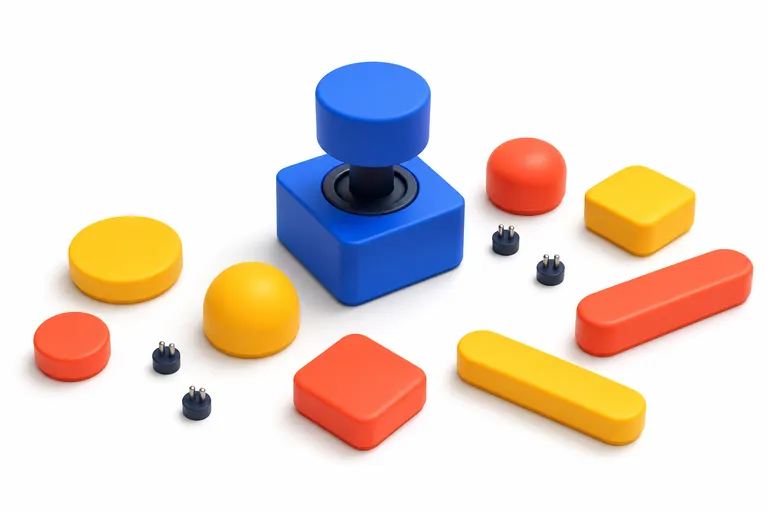
A controller kit for PS5 consoles (model CFI-ZAC1) designed with the accessibility community. It has an analogue stick on an adjustable arm, eight button sockets with swappable caps around a centre button, four 3.5mm expansion ports and a profile button. It can be used in any 360° orientation, flat on a surface or attached to an AMPS or tripod mount.
Set it up, step by step
- Make sure your PS5 console is set up and paired with a DualSense wireless controller, and that the console is switched on.
- Connect the Access controller to the console with the included USB cable.
- Press the PS button on the stick base and select a user. The light bar blinks, then the player and controller indicators light up.
- Follow the on-screen setup, using the base profile to navigate. Out of the box the controller uses the Left orientation, with the stick base pointing left.
- When charging is complete you can disconnect the USB cable and play wirelessly.
- To create a profile, go to Settings > Accessories > Access controller > Profile Library and select Create Profile.
- Follow the on-screen instructions to set Controller Orientation and Button Assignments.
- Select one of the three slots and then Assign, so you can switch to the profile with the profile button during play.
- To refine a profile later, select it in Profile Library and choose Edit to change button assignments, orientation, or Stick sensitivity/Deadzone.
Where it works
| Platform | Support |
|---|---|
| PS5 consoles | Yes — the console it is designed for; a DualSense is needed for first-time console setup |
| DualSense or DualSense Edge alongside it | Yes — can be combined as a single virtual controller |
| Two Access controllers together | Yes — up to two can be paired and used as one |
| PS4, PlayStation Portal, PC | Not covered in PlayStation's UK Access controller support pages; check with PlayStation Support |
| Xbox and Nintendo consoles | Not supported |
What comes in the Access controller kit
PlayStation's product page lists the contents: the controller, a USB cable, eight pillow button caps (attached), four flat caps, four curve caps, two overhang caps, a wide flat cap, three stick caps (standard, dome and ball), 23 tags, and a user and safety guide. It measures approximately 39 × 191 × 141 mm and weighs approximately 0.3 kg.
The buttons are numbered 1 to 8, counting anticlockwise from the socket closest to the stick. Out of the box, the base profile sets button 7 to options, button 5 to circle, the centre button to cross, and the stick as the left stick. To change a cap, press the release latch at its end and lift it straight up; press a new one down until it clicks. Stick caps pull off and click on in the same way. The caps cannot be used on the centre button. After remapping, slot the matching tag into each cap so you can see what it does; a blank tag is included for your own labels. PlayStation suggests switching the controller off while swapping caps or tags to avoid accidental presses.
Positioning: orientation, arm length and mounting
The controller can be set to four orientations (left, right, up or down) in each profile. PlayStation reminds you to physically turn the controller to match whenever you change orientation or switch profile.
The stick sits on an extension arm. Press the lock button on the stick base to unlock it, slide the arm to the length you want, then press the lock button flush to fix it. This changes the distance between the stick and the buttons.
Underneath, two 10-24 screw holes either side of the arm fit AMPS-pattern mounts, and a ¼-20 hole near the centre fits tripods. That makes it possible to fix the controller to a wheelchair tray, table clamp or mounting arm. PlayStation also describes the packaging as designed to be opened with one hand, using pull loops on either side.
Building profiles that match your movement
The PS5 can save up to 30 Access controller profiles, and three can be stored in slots on the controller itself. Each profile holds button assignments, orientation, and stick sensitivity and dead zone.
On the stick sensitivity screen, moving the Sensitivity Setting slider right makes the stick faster; moving the Deadzone slider right means the game only responds to bigger movements. A Playtest area shows the effect as you tilt the stick, which is useful if you have tremor or a limited range of movement.
For buttons, you can assign any function, leave a button unassigned to prevent accidental presses, turn on Button Toggle so one press keeps it held, or use Assign Simultaneous Press to send two inputs at once. If a game reacts unexpectedly, PlayStation suggests checking whether the game's own control settings clash with your profile.
Expansion ports and combining controllers
Four industry-standard 3.5mm expansion ports let you add extra buttons and specialist switches, configured through the PS5 settings. PlayStation's product page also describes an official Logitech G Adaptive Gaming Kit for the Access controller, with eight plug-and-play buttons and triggers and a mat to arrange them on.
You can use up to two Access controllers together as a single virtual controller, or combine one or two Access controllers with a DualSense or DualSense Edge. This adds features the Access controller lacks, such as adaptive triggers, the motion sensor and touch pad swipes. PlayStation states that no extra setup is needed to play collaboratively with an Access controller. To pair a second Access controller wirelessly, use controller 1 to go to Settings > Accessories > General > Bluetooth Accessories, then hold the profile button and PS button together on controller 2.
Controller settings and features it does not have
Besides profiles, the Settings > Accessories > Access controller menu offers Swap controllers (exchange profiles and names between two Access controllers), Display Button Toggle Status (shows on screen which buttons are toggled on), indicator brightness, Edit Controller Name and Reset.
PlayStation lists several DualSense functions that the Access controller does not support: the touch pad (apart from the touch pad button), vibration, adaptive triggers, the motion sensor, the speaker, the microphone, the mute button and a headset jack. If a game relies on any of these, pair the Access controller with a DualSense so the missing features are available from the second controller. The controller charges over USB from the PS5, and PlayStation notes you can set the console to charge controllers in rest mode.
Updates, resets and troubleshooting
Access controller software updates arrive with PS5 system software updates, so keep the console updated. If buttons behave strangely, try the reset button on the underside with a small pin while the console is off; PlayStation says this does not affect pairing or profiles. A factory reset from Settings > Accessories > Access controller > Reset removes profiles from the controller's slots, but saved profiles stay on the console.
The controller pairs with one PS5 at a time. To use it on a friend's console, pair it there. For other PS5 settings that help, such as screen reader, zoom and chat transcription, see our PS5 accessibility settings guide. For advice on whether an Access controller suits you, see the organisations on our UK support page.
Tips that save time
- Keep the cross, circle and options buttons and a stick (or directional buttons) somewhere in each profile; PlayStation says these are needed to operate the console.
- Set the centre button to Not Assigned if you want to rest your hand or wrist on it.
- Turn on Button Toggle for buttons you would otherwise hold down; PlayStation compares it to caps lock.
- Use Assign Simultaneous Press to send two inputs from one button.
- Turn on Display Button Toggle Status to see on screen which buttons are currently toggled on.
- Use the included tags in the button caps to remember what each button does after you remap it.
- The expansion ports are for accessibility accessories, not headsets, and the controller has no speaker, microphone, vibration or motion sensor.
Questions people ask
- How many profiles can the Access controller hold?
Up to 30 profiles can be saved on the PS5 console, and three can be assigned to slots on the controller for quick switching.
- Can I use the Access controller with a DualSense?
Yes. One or two Access controllers can be combined with a DualSense or DualSense Edge, which adds features such as adaptive triggers and the motion sensor.
- Can I plug a headset into the Access controller?
No. PlayStation states the expansion ports are for third-party accessibility accessories, not audio devices, and the controller has no headset jack.
- Does resetting the controller delete my profiles?
The reset button does not. A factory reset removes profiles from the controller's slots, but they remain saved on the PS5.
Related devices and guides
Sources we checked
- https://www.playstation.com/en-gb/support/hardware/pair-access/ (opens in a new tab)
- https://www.playstation.com/en-gb/support/hardware/access-profiles/ (opens in a new tab)
- https://www.playstation.com/en-gb/support/hardware/access-settings/ (opens in a new tab)
- https://www.playstation.com/en-gb/support/hardware/customize-access/ (opens in a new tab)
- https://www.playstation.com/en-gb/support/hardware/access-mount/ (opens in a new tab)
- https://www.playstation.com/en-gb/support/hardware/access-troubleshoot/ (opens in a new tab)
- https://www.playstation.com/en-gb/support/hardware/second-controller-assistance/ (opens in a new tab)
- https://www.playstation.com/en-gb/accessories/access-controller/ (opens in a new tab)
- https://www.playstation.com/en-gb/accessibility/ (opens in a new tab)
Last checked against these sources: .