Device guide · Xbox and Windows
Xbox Adaptive Controller: what it does and how to set it up
The Xbox Adaptive Controller is a flat, wide controller with two large buttons and a row of ports for external switches and joysticks. It does very little on its own; its strength is that you build the setup around it. This guide explains the parts, the setup steps and the settings that matter most.
What it is
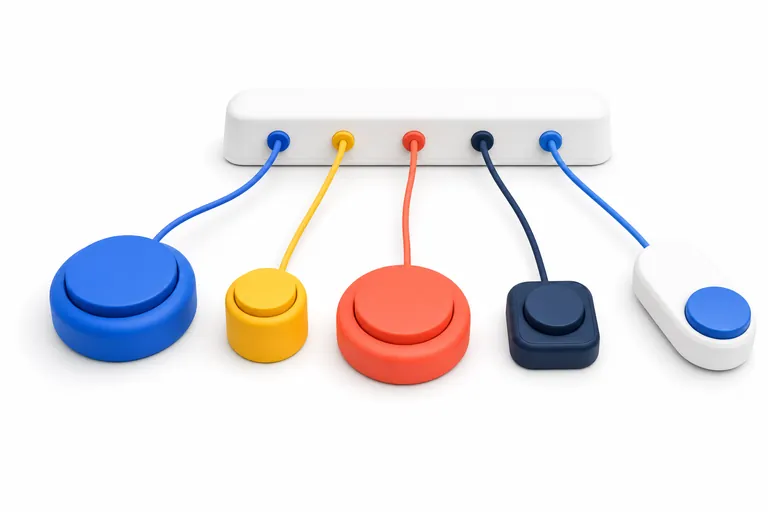
A controller from Microsoft designed primarily for players with limited mobility. It has large programmable A and B buttons, a D-pad, and 3.5mm and USB ports that accept external buttons, switches, mounts and joysticks, so each standard Xbox input can be placed wherever suits the player.
Set it up, step by step
- Charge the controller with the included USB-C cable plugged into your Xbox or PC. The battery light flashes while charging and turns solid white when full.
- To pair with an Xbox Series X|S wirelessly, press the Xbox button to open the guide and go to Profile & system > Settings > Devices & connections > Controllers & headsets. When the Xbox Accessories app opens, select Connect a device and follow the on-screen instructions.
- Alternatively, turn the controller on with its Xbox button, press and hold the Pair button on the console, then press and hold the raised Pair button on the back of the controller until the Xbox button stays lit.
- To use a USB-C cable instead, plug the cable into the back of the controller and into the console. It is detected and charged automatically.
- On a Windows PC, connect with the USB-C cable if you want to create profiles: Microsoft states that the Configure option in the Xbox Accessories app is disabled over wireless and Bluetooth.
- Open the Xbox Accessories app (on Xbox: Xbox button > My games & apps > See all > Apps > Xbox Accessories; on Windows: search for Xbox Accessories from Start).
- Scroll to the Xbox Adaptive Controller and select Configure, then select New profile and give it a name.
- Select Edit. In the Mapping tab, choose a button or input, select Primary and pick the function you want it to perform. Select Ok to confirm.
- Back out with the B button to save. To keep a profile on the controller, assign it to one of three slots and switch between them with the Profile button.
Where it works
| Platform | Support |
|---|---|
| Xbox Series X|S | Yes — wireless or USB-C |
| Xbox One | Yes — wireless or USB-C |
| Windows 10 and 11 PCs | Yes — USB-C, Xbox Wireless or Bluetooth; creating profiles needs USB (or the Xbox Wireless Adapter) |
| Phones and tablets | Yes, on devices that support Xbox Wireless Controller connections (per Microsoft) |
| Smart TVs | Microsoft lists 2021 and newer smart TVs as compatible |
| PlayStation and Nintendo consoles | Not listed as supported by Microsoft |
Profiles, remapping and stick sensitivity in the Accessories app
The Xbox Accessories app is where you decide what every input does. You can store up to three profiles in the controller's slots and switch between them with the Profile button; when no bars are lit, the controller is using default mapping, which cannot be changed.
Besides swapping one button for another, the app supports:
- Keyboard keys, with Shift, Ctrl, Alt and Win modifiers, for PC games (USB or Xbox Wireless Adapter only);
- Mouse movement and mouse buttons from a connected joystick on PC over USB;
- Stick directions as buttons, so pushing a joystick up can act like a button press;
- Stick sensitivity presets named Default, Delayed, Aggressive, Instant and Smooth, plus curve and dead-zone calculation options;
- Button brightness for the Xbox button light.
One detail catches people out: when you remap a button, every input with the same value follows it. Microsoft's example is that remapping D-pad down on the face also remaps the D-pad down 3.5mm jack.
Shift, toggle holds and Controller Assist
Shift lets one input act as a modifier. While you hold it, other buttons and sticks switch to their second function. Microsoft gives the example of using one stick for movement and, with Shift held, for looking around. Shift itself is not a toggle by default, but you can select Enable toggle hold for Shift so it latches.
Toggle hold works on any button or port: press once to hold, press again to release, similar to Sticky Keys on a keyboard.
Xbox Controller Assist (formerly Copilot) links two controllers so the game sees one. You might pair the Adaptive Controller with a standard controller and use whichever is easier for each input, or let a friend take some controls. Turn it on from Profile & system > Settings > Accessibility > Controller > Xbox Controller Assist settings. Microsoft notes that remaps apply only to the controller they are set on and do not carry across to the other controller in Controller Assist.
Power, charging and mounting options
The controller charges through its USB-C port from an Xbox or PC, which detect it automatically. The battery light on the top face flashes while charging and turns solid white when it is full. If the controller does not turn on, Microsoft's first suggestion is to charge it.
A separate round DC power port on the right end takes an AC adaptor, sold separately. Microsoft says this adaptor is required if you connect one or more high-powered USB devices, giving the QuadStick as an example.
For positioning, the underside has two 10-24 screw holes for AMPS-compatible mounts and a central ¼-20 screw hole for tripod mounts. That lets the controller sit on a desk, lap tray or wheelchair mount, with switches placed separately wherever they are easiest to reach. Because the controller's own buttons and the external switches can be remapped independently, you can leave the controller out of reach and play entirely through external devices if that suits you.
Common setup problems and where to get help
If the controller will not turn on, charge it first. If Windows lists it as "Xbox Wireless Controller", that is normal according to Microsoft. If you cannot edit profiles on PC, check that you are connected by USB-C rather than Bluetooth. If external switches do nothing, check whether a profile has remapped that jack, and update the firmware: in the Accessories app, find the controller and select More (…), then the update if one is offered.
Microsoft runs an Xbox Disability Answer Desk for accessibility questions. For hands-on advice on setups in the UK, Microsoft's own pages point to SpecialEffect. For console-wide settings that work alongside the controller, see our Xbox accessibility settings guide and the motor and mobility guide.
Tips that save time
- Map your inputs on paper first: list the controls a game needs, then decide which switch or joystick will handle each one.
- Use the left and right triggers or the X1 and X2 jacks for analogue devices; most other 3.5mm jacks accept digital (on/off) inputs only.
- If you plug an analogue joystick into X1 it acts as the left stick; in X2 it acts as the right stick.
- Toggle hold makes a button stay pressed after one press, which can replace long trigger holds.
- Shift gives every button a second function while a chosen Shift button is held, useful for one-handed setups.
- If you connect high-powered USB devices such as a QuadStick, Microsoft says you need the separate AC adaptor.
- Remaps made in the Accessories app are invisible to games, so on-screen prompts may still show the original button.
Questions people ask
- Does the Xbox Adaptive Controller work on PC?
Yes. It connects to Windows 10 and 11 by USB-C, Xbox Wireless or Bluetooth. To create profiles in the Xbox Accessories app on PC, it must be connected by USB (or the Xbox Wireless Adapter).
- Do I need to buy switches to use it?
It has two large buttons and a D-pad built in, but most setups add external switches or joysticks through its 3.5mm and USB ports.
- How many profiles can it store?
Three, in slots you switch between with the Profile button. You can create more profiles in the app and assign them to slots when needed.
- Do I need a disability to use it?
No. Microsoft says the controller is for everyone, although it was designed primarily for players with limited mobility.
Related devices and guides
Sources we checked
- https://support.xbox.com/en-GB/help/account-profile/accessibility/get-to-know-adaptive-controller (opens in a new tab)
- https://support.xbox.com/en-GB/help/account-profile/accessibility/adaptive-controller-faq (opens in a new tab)
- https://support.xbox.com/en-GB/help/account-profile/accessibility/connect-adaptive-controller-to-xbox-one (opens in a new tab)
- https://support.xbox.com/en-GB/help/account-profile/accessibility/connect-adaptive-controller-to-pc (opens in a new tab)
- https://support.xbox.com/en-GB/help/account-profile/accessibility/customize-adaptive-controller-in-xbox-accessories-app (opens in a new tab)
- https://support.xbox.com/en-GB/help/account-profile/accessibility/use-shift-with-adaptive-controller (opens in a new tab)
- https://support.xbox.com/en-GB/help/account-profile/accessibility/devices-that-work-with-adaptive-controller (opens in a new tab)
- https://support.xbox.com/en-GB/help/account-profile/accessibility/play-with-adaptive-controller (opens in a new tab)
- https://support.xbox.com/en-GB/help/account-profile/accessibility/copilot (opens in a new tab)
- https://support.xbox.com/en-GB/help/account-profile/accessibility/xbox-pc-accessibility-controls (opens in a new tab)
Last checked against these sources: .