Motor · players with limited mobility or dexterity
Gaming with limited mobility: controllers, remapping and one-handed setups
A standard controller asks a lot: two thumbs, eight fingers, fast presses and long holds. If that does not work for your body, you can change the controller, change what each button does, or share the controls with someone else. Here is how each approach works.
Accessibleplayuk · Motor and mobility checklist · accessibleplayuk.com/needs/motor/
What to look for
0 of 9 ticked
Use this list when you check a game's accessibility menu, store page or the publisher's accessibility notes. Tick the features that matter to you, then print it or keep it on screen.
Your ticks are saved on this device only. Printing shows just this checklist.
Three ways to make a controller fit you
Most motor accessibility comes down to one of three approaches, and many players combine them:
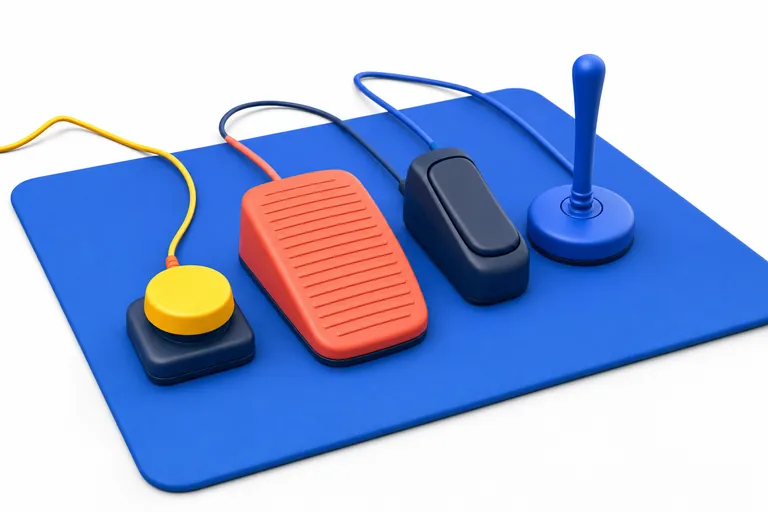
- Change the hardware. Adaptive controllers such as the Xbox Adaptive Controller and the PlayStation Access controller have large buttons and ports for external switches and joysticks.
- Change the mapping. Every current console lets you remap buttons at system level, and many games offer their own remapping.
- Share the controls. Xbox Controller Assist and the PS5 assist controller feature let two controllers act as one, so a friend, carer or second device can handle some inputs.
The right mix depends on which movements are reliable for you, how long you play for, and whether fatigue builds up over a session. A setup that feels fine for ten minutes may not suit an hour, so try changes over a few sessions.
Before buying hardware, it is worth trying remapping on the controller you already have. It costs nothing and may solve the problem. If it does not, an adaptive controller or specialist advice is the next step.
Adaptive controllers for Xbox and PlayStation
The Xbox Adaptive Controller is described by Microsoft as designed primarily for gamers with limited mobility. It has two large programmable buttons and a D-pad on top, 19 3.5mm ports along the back for external switches and buttons, and two USB 2.0 ports on the sides for joysticks. It works with Xbox consoles, Windows PCs and other devices that support Xbox Wireless Controllers.
The PlayStation Access controller is a PS5 controller kit with eight swappable button caps around a centre button, an analogue stick, and four 3.5mm expansion ports. It can be placed in any 360° orientation, and you can store up to 30 profiles on the console.
Both can be mounted using standard AMPS and tripod screw holes, so they can sit on a wheelchair tray, desk clamp or mounting arm. Both let you mix in external switches, which means a large button can be pressed with a hand, foot, elbow or head, depending on what suits you.
Toggles, Shift and fewer simultaneous presses
Holding a trigger for a long time, or pressing two buttons at once, can be the hardest part of a game. Adaptive controllers include ways around this:
- Toggle hold (Xbox Adaptive Controller): in the Xbox Accessories app you can enable a toggle hold for any button or port. Microsoft compares it to Sticky Keys: press once and the button stays held, press again to release.
- Shift (Xbox Adaptive Controller): assign one input as a Shift button, so every other button can have a second function while Shift is held. A toggle option lets Shift itself latch on.
- Button Toggle and Simultaneous Press (PS Access controller): PlayStation's support pages describe Button Toggle as working like caps lock, and Assign Simultaneous Press as a way to send two inputs from one button.
In games, look for options named hold-to-toggle, auto-sprint, auto-run or similar. The Accessible Games Initiative tag Playable without button holds marks games that do not require digital buttons to be held.
Two controllers, one player: assist modes
Assist modes link two controllers so the game sees one. This is useful in several ways: a parent can help a child through a tricky section, a carer can handle menus, or one player can use two devices together, such as a standard controller in one hand and switches on an adaptive controller.
- Xbox Controller Assist (previously called Copilot): with both controllers connected, use the primary controller to go to Profile & system > Settings > Accessibility > Controller, choose Xbox Controller Assist settings and select Turn on Xbox Controller Assist. Achievements go to the primary controller's profile.
- PS5 assist controller: go to Settings > Accessibility > Controllers > Use Second Controller for Assistance and turn on Use Assist Controller. PlayStation notes that a DualSense Edge cannot be the assist controller, and some features such as haptic feedback do not work on the assist controller. PlayStation also states that no setup is needed to play collaboratively using an Access controller.
PC options: keyboards, mice, voice and eye gaze
PCs offer more input choices than consoles. Windows includes Sticky keys (press key combinations one key at a time), Filter keys (ignore brief or repeated presses), Mouse keys (move the pointer with the numeric keypad) and the On-Screen Keyboard, which can be used with a joystick or a single switch. These are under Settings > Accessibility > Keyboard and Settings > Accessibility > Mouse.
Voice access in Windows 11 lets you control the PC by voice and works offline. It is better suited to menus and slower games than fast action.
Eye-gaze control is another route for players with very limited movement. The charity SpecialEffect works with eye-gaze technology and offers free eye-control web games. See our Windows gaming guide for menu paths.
Comfort, fatigue and getting a personalised setup
Fatigue and pain can build up during play. Xbox can remind you to take a break at intervals from 30 minutes to 2 hours (Profile & system > Settings > Preferences > Break reminder). Microsoft suggests other ways to rest, such as relaxing your hands during cutscenes or switching between the D-pad and the stick.
Setups for motor disabilities are personal. What works depends on which movements are reliable, comfortable and repeatable for you. SpecialEffect, a charity, helps physically disabled people play video games, using anything from modified controllers to eye-tracking. Microsoft's own Xbox Adaptive Controller pages also point to SpecialEffect. Their help, and the other organisations on our UK support page, can save you money on equipment that turns out not to suit you.
Questions people ask
- Do I need an adaptive controller to play with limited mobility?
Not always. Try remapping on your current controller first, plus in-game toggles and assist options. If that is not enough, an adaptive controller and external switches are the next step.
- Can I play one-handed?
Often yes. Combine remapping, Shift functions on the Xbox Adaptive Controller, and games that support single-stick play or no button holds. Results vary a lot from game to game.
- Can a friend or carer help with some of the controls?
Yes. Xbox Controller Assist and the PS5 assist controller feature let two controllers act as one for the same player.
- Why do button prompts show the wrong button after remapping?
Console-level remapping is invisible to the game, so prompts still show the original button. Remapping in the game's own settings, where available, keeps prompts matching.
More guides
Sources we checked
- https://support.xbox.com/en-GB/help/account-profile/accessibility/adaptive-controller-faq (opens in a new tab)
- https://support.xbox.com/en-GB/help/account-profile/accessibility/customize-adaptive-controller-in-xbox-accessories-app (opens in a new tab)
- https://support.xbox.com/en-GB/help/account-profile/accessibility/use-shift-with-adaptive-controller (opens in a new tab)
- https://support.xbox.com/en-GB/help/account-profile/accessibility/copilot (opens in a new tab)
- https://support.xbox.com/en-GB/help/account-profile/accessibility/mobility-disabilities-accessibility-and-features (opens in a new tab)
- https://support.xbox.com/en-GB/help/account-profile/accessibility/xbox-pc-accessibility-controls (opens in a new tab)
- https://support.xbox.com/en-GB/help/account-profile/accessibility/use-break-reminder-setting (opens in a new tab)
- https://support.xbox.com/en-GB/help/account-profile/accessibility/game-accessibility-features (opens in a new tab)
- https://www.playstation.com/en-gb/support/hardware/access-profiles/ (opens in a new tab)
- https://www.playstation.com/en-gb/support/hardware/second-controller-assistance/ (opens in a new tab)
- https://www.playstation.com/en-gb/support/hardware/ps5-accessibility-settings/ (opens in a new tab)
- https://www.playstation.com/en-gb/accessories/access-controller/ (opens in a new tab)
- https://www.nintendo.com/en-gb/Support/Troubleshooting/Guide-to-Accessibility-Features-on-Nintendo-Switch-2-2843775.html (opens in a new tab)
- https://www.nintendo.com/en-gb/Support/Nintendo-Switch/Button-Mapping-FAQ-1766230.html (opens in a new tab)
- https://support.microsoft.com/en-gb/accessibility/windows/make-your-mouse-keyboard-and-other-input-devices-easier-to-use (opens in a new tab)
- https://support.microsoft.com/en-gb/topic/get-started-with-voice-access-bd2aa2dc-46c2-486c-93ae-3d75f7d053a4 (opens in a new tab)
- https://specialeffect.org.uk/ (opens in a new tab)
Last checked against these sources: .