Device guide · Windows 11 PCs
Windows accessibility settings for PC gaming
Windows has a deep set of accessibility tools, but not all of them reach into games. This guide explains the settings that help with PC gaming, which ones Microsoft says carry into games, and how the Xbox app, Game Bar and Xbox Accessories app fit in.
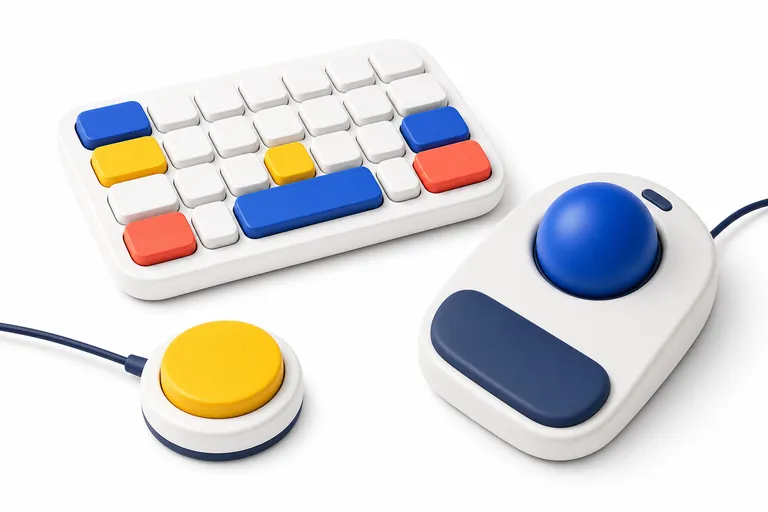
What it is
The accessibility settings built into Windows 11 (Settings > Accessibility), plus the Xbox app, Game Bar and Xbox Accessories app, which add game chat transcription, controller remapping and Xbox Controller Assist on PC.
Set it up, step by step
- Press the Windows logo key + U, or select Start > Settings > Accessibility.
- Vision: choose Text size, Contrast themes, Colour filters, Magnifier or Narrator as needed.
- Hearing: choose Audio to switch on Mono audio or Flash my screen during audio notifications; choose Captions to switch on Live captions.
- Interaction: choose Keyboard to turn on Sticky keys, Filter keys or the On-screen keyboard; choose Mouse to turn on Mouse keys.
- Speech: choose Speech to set up voice access.
- For controllers, install the Xbox Accessories app from Microsoft Store, connect the controller by USB, select Configure and create a profile.
- For game chat transcription, press Windows key + G to open Game Bar, then go to the Xbox Chat widget > Xbox Chat Options > Accessibility.
Where it works
| Platform | Support |
|---|---|
| Windows 11 | Yes — all settings in this guide; live captions and voice access need version 22H2 or later |
| Windows 10 | Many equivalents under Settings > Ease of Access; no live captions or voice access |
| Xbox Adaptive Controller and Xbox controllers | Yes — configure with the Xbox Accessories app over USB |
| Game chat transcription | Through Game Bar in games that support it |
Which Windows settings reach into games
Microsoft publishes a table showing how each Windows setting affects the Xbox app, Game Bar, the Xbox Accessories app and games. Some highlights:
- Always affect games: Magnifier, colour filters, display brightness, mono audio and Night light.
- Never affect games: Narrator, high contrast mode, text size, mouse pointer size and colour, and caption style settings.
- Sometimes affect games: mouse keys and mouse pointer speed, depending on the game.
In other words, Windows can change how the whole screen looks and sounds, but it cannot make a game's own text bigger or make it work with a screen reader. Those depend on the game. That is why our game profiles focus on in-game options.
Microsoft's table also covers the Xbox Accessories app: Xbox Controller Assist always applies in games, while controller remapping applies in games but is not reported to them. That is why button prompts may not match a remapped controller.
Seeing the screen: Magnifier, colour filters and contrast
Magnifier enlarges part or all of the screen and works inside games. Press the Windows logo key + plus sign to open it and zoom in, the Windows logo key + minus sign to zoom out, and the Windows logo key + Esc to close it. Microsoft notes that, unlike on Xbox consoles, you cannot control the PC Magnifier with an Xbox controller.
Colour filters (Settings > Accessibility > Colour filters) change the screen palette to help distinguish colours, and also apply in games. Contrast themes (Aquatic, Desert, Dusk and Night sky) affect Windows and the Xbox app, not games. Text size and Display > Scale make Windows and apps larger. Microsoft does not recommend custom scaling values.
Hearing: live captions, mono audio and visual alerts
Live captions in Windows 11 (version 22H2 and later) transcribe any audio playing on the PC, which can help with games or videos that lack subtitles. Turn them on with Windows logo key + Ctrl + L or in Settings > Accessibility > Captions. Microsoft says processing happens on the device and captions are not stored. You can dock the caption window above or below the screen or float it, and include microphone audio if you want your own speech captioned.
Mono audio (Settings > Accessibility > Audio) sends the same sound to both sides and applies in games. On the same page, Flash my screen during audio notifications shows alerts visually. For chat, Game Bar's transcription turns other players' speech into text in supported games.
Input: keyboard, mouse, voice and controllers
The Keyboard settings include Sticky keys (press shortcuts one key at a time), Filter keys (ignore brief or repeated keystrokes) and the On-screen keyboard, which Microsoft says can be used with a mouse, a joystick or a single switch. Mouse keys, under Mouse, let you move the pointer with the numeric keypad. Microsoft notes mouse keys only work in games that accept both mouse and keyboard and do not use the keypad for other actions.
Voice access lets you control the PC and dictate text by voice without an internet connection. Wake it by saying "Voice access wake up" or pressing Alt + Shift + B. It suits menus, launchers and slower games.
For controllers, the Xbox Accessories app handles remapping and Xbox Controller Assist. On PC, connect by USB (or the Xbox Wireless Adapter) to configure profiles. See the Xbox Adaptive Controller guide.
Game Bar, the Xbox app and notification timing
Game Bar (Windows key + G) adds chat transcription for PC games that support it. You need to be signed in to Game Bar. Then open the Xbox Chat widget, select Xbox Chat Options in its title bar and choose Accessibility. Under Game chat transcription, turn on Speech-to-text to read other players and Text-to-speech to have your typed messages read aloud. If Settings is missing, Microsoft suggests updating Game Bar through Microsoft Store.
The Xbox app has its own options, including Let games read to me and Enable high contrast in game. Microsoft notes these only apply in games designed to read them.
Windows notifications disappear after five seconds by default. To give yourself longer, go to Settings > Accessibility > Visual effects and change Dismiss notifications after this amount of time. For warmer colours in the evening, Settings > System > Display > Night light applies in games as well as on the desktop.
Finding accessible PC games in the Xbox app
The Xbox app for Windows can filter games by accessibility features. Microsoft's steps are: open the Xbox app and sign in, select Game Pass > All PC Games, select Filters and choose from the options under Accessibility Features, then select Apply. The same filters are on xbox.com under Games.
Tags such as Playable with keyboard only, Playable with mouse only, Full input remapping and Large & clear subtitles are especially relevant on PC. Microsoft points out that developers choose which tags to use, and tags are not a complete list, so check the publisher's accessibility page too. For needs-based advice, start with our motor, vision, hearing or cognitive guides.
Tips that save time
- Windows logo key + Ctrl + L turns live captions on or off.
- Windows logo key + Ctrl + C toggles colour filters once you have turned on the keyboard shortcut in Colour filters settings.
- Windows logo key + plus sign opens Magnifier; Windows logo key + Esc closes it.
- Windows logo key + Ctrl + Enter starts or stops Narrator.
- Press Shift five times to toggle Sticky keys; hold right Shift for eight seconds to toggle Filter keys.
- Remapping in the Xbox Accessories app is invisible to games, so in-game remapping is better where available.
- Windows 10 uses Settings > Ease of Access for many of the same options.
Questions people ask
- Does Windows Narrator read games?
No. Microsoft's table shows Narrator affects the Xbox app, Game Bar and the Xbox Accessories app but never affects games. In-game narration depends on the game.
- Which Windows settings work inside games?
According to Microsoft, Magnifier, colour filters, brightness, mono audio and Night light always apply in games. Mouse keys and pointer speed sometimes do.
- Can I use live captions while gaming?
Yes, on Windows 11 version 22H2 or later. Press Windows logo key + Ctrl + L. They transcribe speech, not sound effects.
- How do I remap an Xbox controller on PC?
Install the Xbox Accessories app, connect the controller by USB, select Configure and create a profile. Games will not know about the remap, so prompts may show the original buttons.
Related devices and guides
Sources we checked
- https://support.xbox.com/en-GB/help/account-profile/accessibility/xbox-pc-accessibility-controls (opens in a new tab)
- https://support.microsoft.com/en-gb/accessibility/windows/make-windows-easier-to-see (opens in a new tab)
- https://support.microsoft.com/en-gb/accessibility/windows/make-windows-easier-to-hear (opens in a new tab)
- https://support.microsoft.com/en-gb/accessibility/windows/make-your-mouse-keyboard-and-other-input-devices-easier-to-use (opens in a new tab)
- https://support.microsoft.com/en-gb/accessibility/windows/use-live-captions-to-better-understand-audio (opens in a new tab)
- https://support.microsoft.com/en-gb/topic/get-started-with-voice-access-bd2aa2dc-46c2-486c-93ae-3d75f7d053a4 (opens in a new tab)
- https://support.microsoft.com/en-gb/accessibility/windows/windows-keyboard-shortcuts-for-accessibility (opens in a new tab)
- https://support.xbox.com/en-GB/help/account-profile/accessibility/use-magnifier (opens in a new tab)
- https://support.xbox.com/en-GB/help/account-profile/accessibility/use-color-filters (opens in a new tab)
- https://support.xbox.com/en-GB/help/account-profile/accessibility/use-game-chat-transcription (opens in a new tab)
- https://support.xbox.com/en-GB/help/account-profile/accessibility/search-games-with-accessibility-features (opens in a new tab)
- https://support.xbox.com/en-GB/help/account-profile/accessibility/customize-adaptive-controller-in-xbox-accessories-app (opens in a new tab)
Last checked against these sources: .